
Global Navigation
Problem
An app requires global navigation so that the user can frequently and easily navigate between its main categories, no matter where they happen to be in the app.
Solution
The Left Drawer (which is not yet implemented as a Moonstone control) provides users with persistent access to global navigation no matter which panel they are in. Once the user navigates past panel 1, the Left Drawer closes to reduce the clutter of unnecessary UI. A left drawer handle remains available so that the user can reopen the left drawer and change categories.
How to Use
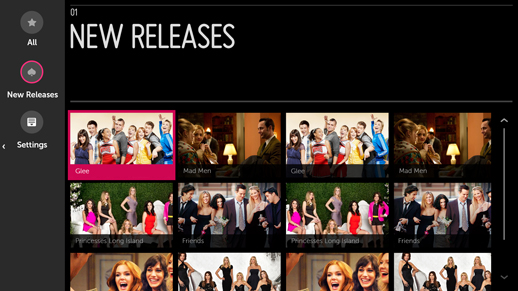
Panel 1 with Left Drawer Open
Above is an example of the Left Drawer with Panel 1.
The Left Drawer is the entire height of the screen and is always displayed when the user is viewing Panel 1.
If the user selects a different item from the Left Drawer, Panel 1 is updated with the new content. If the user selects an item from Panel 1, Panel 2 opens, the Left Drawer closes, and Panel 1 becomes a Breadcrumb.
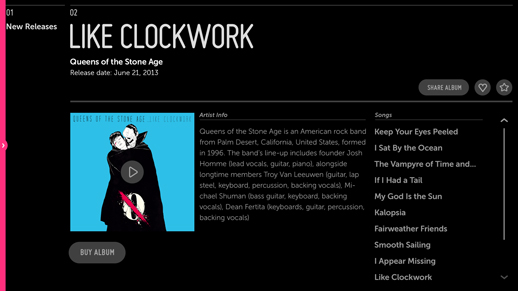
Panel 2 with Left Drawer Closed
The Left Drawer is accessible from any panel with the Magic Remote pointer only.
When the drawer is hidden, the user must point to the Left Drawer Handle on the left edge of the screen to reopen the drawer.
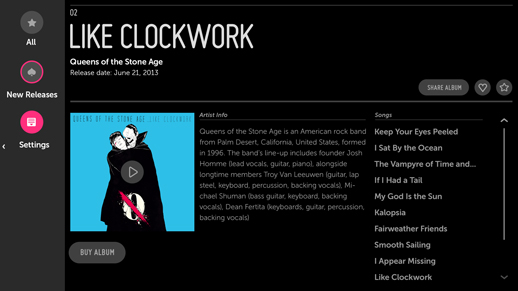
Panel 2 with Left Drawer Open
If the user selects an item from the Left Drawer, Panel 2 is replaced by Panel 1, which will be populated with content associated with the selection. The user may hide the Left Drawer by clicking to the left and collapsing the drawer. The user may also navigate back to the content in Panel 2.
What to Avoid
Do not use the right side for your drawer. Panels open from (and close to) the right. A right-side drawer would leave the the user confused and not knowing what to expect.
Do not use the Left Drawer for Feature Navigation.
Do not make the Left Drawer larger than the breadcrumb column.
Why
The Left Drawer gives the app a feeling of shallow navigation, which makes for a more lean-back experience for the user.
In apps that make heavy use of menu items, this feature makes it easy for users to jump around from one section to the next without having to return to the main menu in Panel 1.
Related Topics
Patterns: Feature Navigation