
Hub and Spoke
Problem
An application needs a minimal UI to support a high-absorption experience. The main navigation will divide the app into discrete sections (e.g., Movies, TV Shows, Settings) that the user will not regularly switch between.
Solution
Using Panel 1 as the Hub of an app gives the user a home base from which to explore each content category. This lets the user focus on one type of content or action at a time, while maintaining a shallow navigation structure.
To navigate to another main category, the user must first return to the Top Level view.
How to Use

Panel 1: Hub
Panel 1 is the Hub of the application. The main menu can be a simple list of categories or a more visually rich grid with previews of the content available in each category as shown to the left.
Select a menu item to navigate into that spoke of the application.
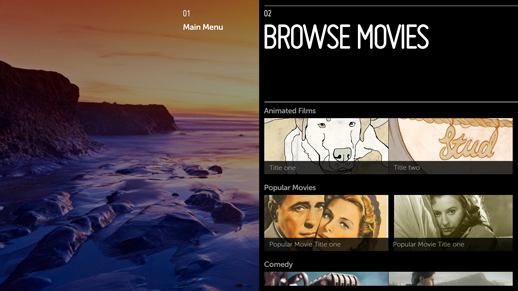
Panel 2: Movies Spoke
After making a selection from Panel 1, the user begins the journey down the Movies spoke.
The only way the user can begin exploring a different content category is to return to the Hub (Panel 1) and choose another spoke.
Selecting an item from the options available in Panel 2 will move the user further along the spoke.
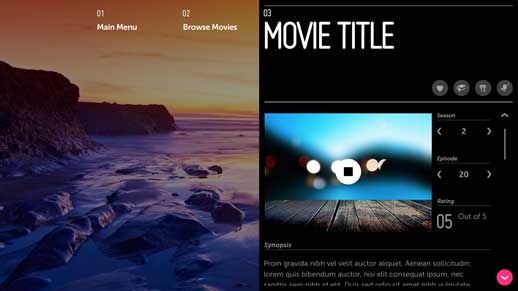
Panel 3: End of Spoke
Once the end of a spoke is reached (Panel 3), the user can explore the final section by utilizing the Jump To Anchor, or make a selection to begin viewing content.
The user may also choose to move back through the panels to earlier sections of the spoke, or start fresh at the Hub (Panel 1).
Why
Since TV applications should maintain a shallow navigation structure with minimal onscreen UI, the Hub and Spoke pattern is used quite frequently.
What to Avoid
Do not use Hub and Spoke if you expect users to switch between the main categories frequently.
Related Topics
Patterns: Panel Patterns